
Every staff member of the Aix-Marseille Academy receives an academic email address as soon as their file is processed by the rectorate or the DSDEN. This address follows a standardized format, usually [email protected], and provides access to webmail as well as several digital services related to professional life. Knowing how to retrieve it, connect to it, and configure it correctly avoids many issues at the beginning of the school year.
Enhanced authentication on Aix-Marseille webmail
Most online guides still describe a simple login with a username and password. The reality has changed. The Aix-Marseille Academy has gradually deployed a multi-factor authentication to secure access to sensitive accounts.
Specifically, after entering your username (often the first letter of your first name followed by your last name) and your password, a temporary code (OTP) may be requested. This code is sent via SMS or generated by an authentication app installed on your phone.
Why this change? Academic addresses provide access to personal data of students, confidential administrative documents, and management tools. A simple username/password combination is no longer sufficient to protect this information. If you have not yet configured this additional step, the Esterel portal will guide you during your next login.
To better understand how to retrieve your academic email address from the Aix-Marseille Academy and activate your account, the procedure always starts with identifying your NUMEN, this personal number assigned by the Ministry of Education.
NUMEN and first password: activating your academic email account
The NUMEN (National Education Identification Number) is the key to your account. It is found on your appointment order or on the documents provided by the DSDEN when you start your position.
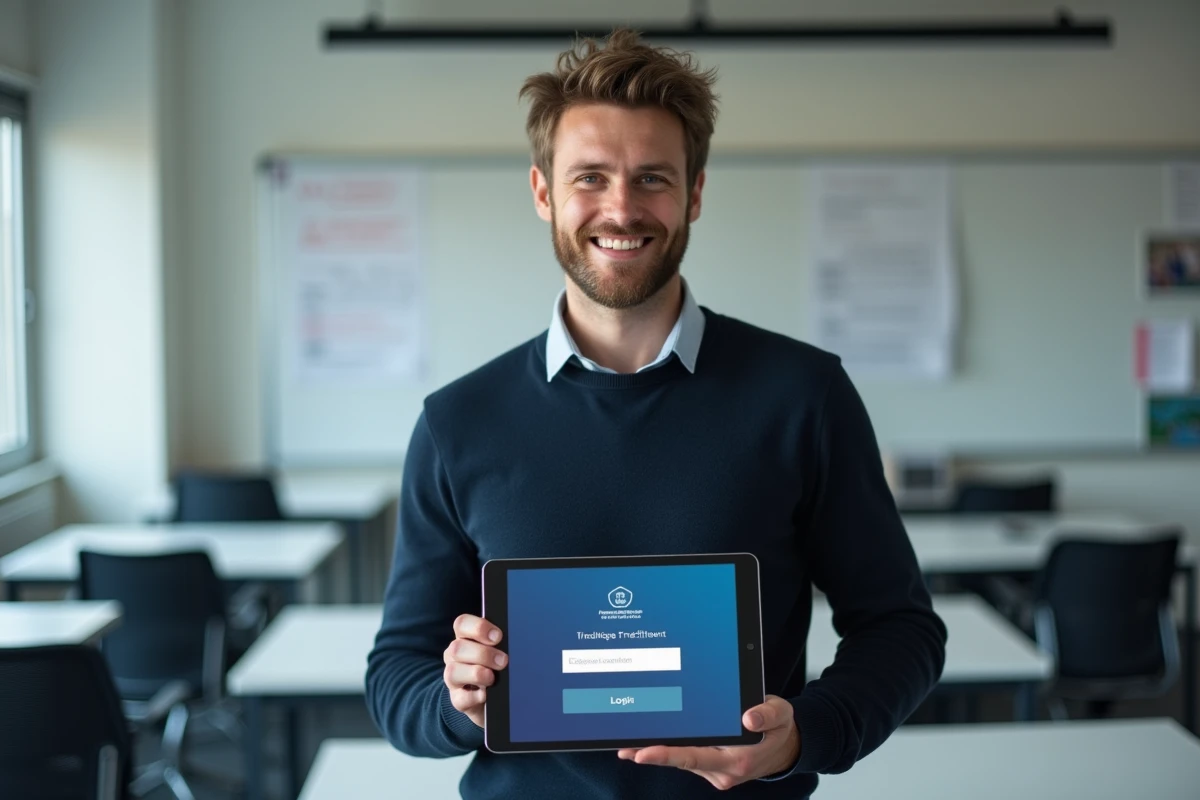
Do you have your NUMEN handy? Here are the steps to activate your academic email:
- Go to the Aix-Marseille Academy webmail access portal (accessible from the official site ac-aix-marseille.fr)
- Enter your username, which most often corresponds to the initial format of your first name + last name (for example jdupont)
- During the first login, the initial password is often your NUMEN. The system will prompt you to change it immediately
- Choose a strong password, mixing uppercase letters, lowercase letters, numbers, and special characters
- Set up a password recovery solution (personal email address or phone number) to avoid being stuck in case of forgetfulness
This last step is often overlooked. Without a configured recovery solution, a forgotten password requires direct contact with the IT service of the rectorate, which can take several days.
Configuring Aix-Marseille email on mobile via IMAP
Accessing academic emails only from a computer is no longer suitable for current usage. The good news: no dedicated app is needed to check your email on a smartphone or tablet.
There are two options. The simplest is to open the webmail directly in your phone’s browser. The interface adapts to the screen and allows you to read, write, and organize your messages without installation.
The second option offers more comfort in daily use: configure an email client (the Mail app on iOS, Gmail on Android, or K-9 Mail) with the academy’s IMAP settings.
Here are the settings to enter:
- IMAP incoming server: the exact settings are available on the academy’s help portal (they vary according to updates)
- IMAP port: generally the secure port with SSL/TLS encryption
- SMTP outgoing server: to be configured with the same credentials as the incoming server
- Enable SSL/TLS encryption on both servers to protect your exchanges
The IMAP protocol synchronizes messages across all your devices. An email read on your phone will also appear as read on your computer. This is the difference from the POP protocol, which downloads messages locally without synchronization.

Security and signature: two often overlooked settings
Once the connection is established, two settings deserve your attention before you start using your address daily.
The first concerns the custom academic signature. By default, your emails are sent without a signature or with a generic mention. From the webmail settings, you can create a signature including your name, your position, your institution, and your contact details. This signature is automatically added to each message sent, making it easier for your contacts (parents, colleagues, administrative services) to identify you.
The second setting concerns the security of your account. Beyond a strong password, regularly check that your recovery address is up to date. An unreported change of phone number in the account settings renders the recovery procedure ineffective.
Also, remember to always log out when using a shared workstation in the staff room or library. Open sessions on public workstations represent one of the most common vulnerabilities in schools.
What to do in case of webmail connection blockage
A forgotten password does not mean a lost account. If you have configured a recovery solution, resetting it can be done in a few minutes from the webmail login page.
If no recovery solution has been set up, you will need to contact the IT support service of your institution or your DSDEN. Prepare your NUMEN and an ID, as the procedure includes an identity verification before any manual reset.
Another common case: the account exists but the username does not work. This often happens to staff whose name includes an accent, a hyphen, or a particle. The format of the username may differ from what you expect. In case of doubt, the secretariat of your institution or the HR service of the rectorate can confirm the exact username associated with your account.
The academic email remains the official communication tool between staff and the institution. Taking the time to configure it correctly from the start, including on mobile, avoids situations where a message from the rectorate goes unnoticed for weeks in a box that is never checked.